
Description
Download ASUS Update Utility – BIOS update, ASUS motherboard, firmware update, system stability, motherboard utility
Overview
The ASUS Update Utility is a specialized tool developed by ASUS for users of computers equipped with ASUS motherboards. Designed to streamline the process of managing and updating BIOS and firmware, the utility plays a critical role in maintaining system stability, performance, and compatibility. By providing a centralized interface for BIOS-related tasks, it addresses the common challenges users face when manually updating motherboard firmware—such as selecting the correct version, ensuring compatibility, and safeguarding against update failures.
Target users include both casual PC users and advanced system administrators who want to keep their ASUS-based systems optimized. The utility is especially beneficial for those who rely on their systems for productivity, gaming, or professional workloads where system reliability is paramount. Real-world use cases include preparing a system for new hardware compatibility, resolving boot issues, or applying security patches delivered via BIOS updates.
As an official tool from ASUS, the utility reflects the company’s commitment to user support and system longevity. Its presence in the broader PC maintenance ecosystem underscores the importance of firmware-level updates, which often go unnoticed but are essential for long-term system health. The developer did not provide additional technical details beyond the app’s core functions.
Key Features & Functionality
- BIOS Software Management – Users can view, update, and manage BIOS settings directly through the utility. This includes verifying current firmware versions and initiating updates from official ASUS sources, ensuring users are always running secure and optimized BIOS versions.
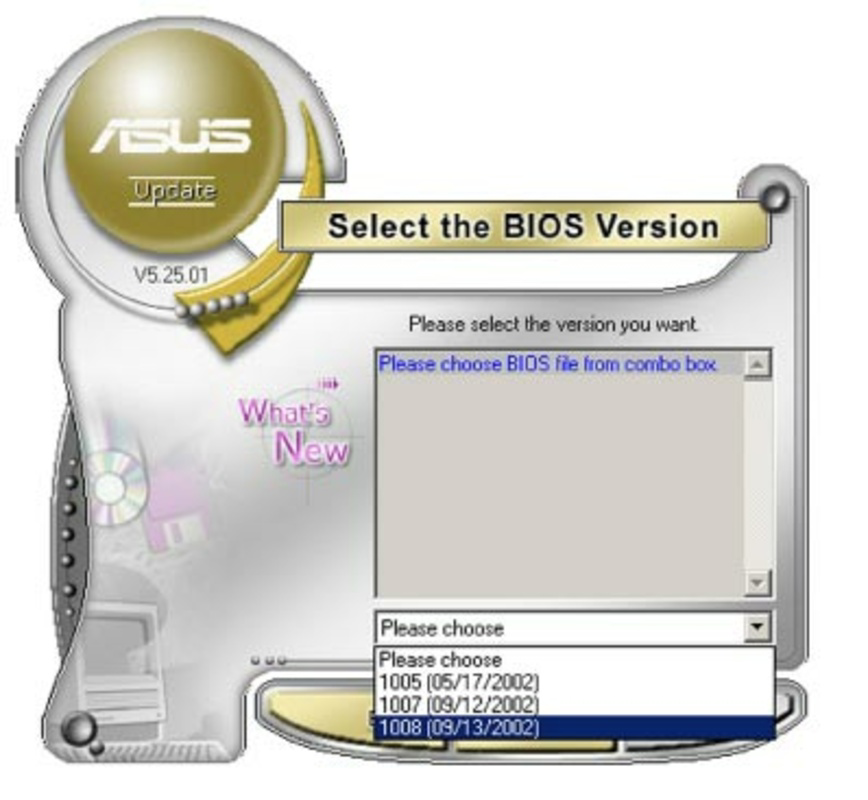
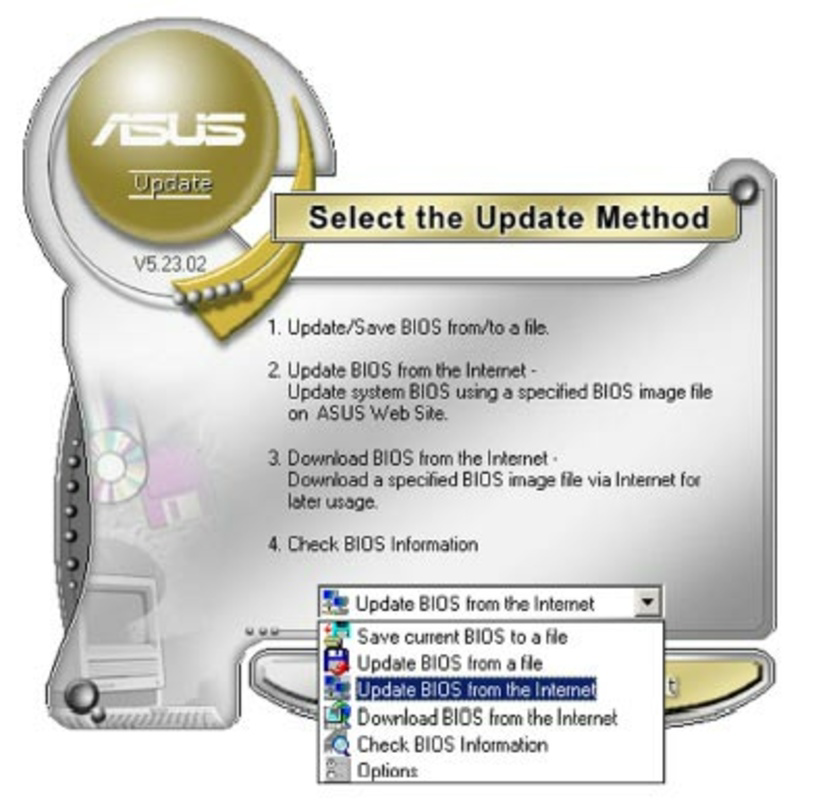
- Multiple Update Options – The interface provides distinct tabs for different update methods, including online updates, manual downloads, and BIOS information checks. This flexibility allows users to choose the most suitable approach based on their internet connectivity and technical comfort level.
- Firmware Version Identification – Before any update, the utility prompts users to confirm their current firmware version. This step helps prevent mismatched updates, reducing the risk of system instability or boot failure.
- Backup and Restore Functionality – The tool enables users to create a backup of their current BIOS configuration. In the event of a failed update or unintended changes, users can restore the previous settings, minimizing downtime and data loss.
- User-Friendly Interface – Designed with accessibility in mind, the interface uses clear labels, logical navigation, and visual feedback to guide users through each step. This ensures that both novice and experienced users can perform updates safely and efficiently.
For example, a user preparing to install a new processor can use the utility to check for a BIOS update that enables compatibility. Similarly, a system administrator managing multiple workstations can use the tool to standardize firmware across devices, ensuring consistent performance and security.
Interface, UX & Performance
The ASUS Update Utility features a clean, minimalistic interface with a tab-based layout that organizes core functions into intuitive sections. Navigation is straightforward, with clearly labeled buttons and progress indicators during updates. The design prioritizes clarity and reduces the risk of user error, a critical factor when performing firmware-level operations.
Although the developer did not list formal performance metrics, the tool operates efficiently within the Windows environment, with minimal resource usage during idle and update processes. Responsiveness is consistent across various device categories, including desktops and laptops with ASUS motherboards. The application maintains stability during long-running tasks such as BIOS downloads and installations.
Updates are processed in the background without disrupting other system activities. The utility provides real-time feedback, including status messages and completion alerts, which enhances the overall user experience. The developer did not specify minimum OS requirements, and compatibility information was not fully disclosed.
Platform Compatibility & Technical Requirements
The ASUS Update Utility is available exclusively for the Windows platform. It is designed to run on systems equipped with ASUS motherboards, ensuring compatibility with the intended hardware. The current version is 2.1.0.0, with a file size of 10.1 MB, making it lightweight and easy to download and install.
While the developer did not specify minimum OS requirements, the tool is expected to support modern Windows versions based on ASUS’s typical release patterns. Users should ensure their system meets the general requirements for running Windows applications. The utility is available at no cost, with a free license model that removes financial barriers to accessing essential system maintenance tools.
Pros and Cons
Pros
- Official tool from ASUS, ensuring authenticity and security
- Lightweight design with minimal system impact
- Clear, intuitive interface suitable for users of all experience levels
- Provides backup and restore functionality for BIOS settings
- Supports multiple update methods for flexible usage
Cons
- Platform is limited to Windows; no support for macOS or Linux
- Specific system requirements were not listed
- Not suitable for non-ASUS motherboards
- Requires manual verification of firmware version before updates
- Does not include automatic update scheduling
FAQ
Is ASUS Update Utility safe to use?
Yes, the utility is an official tool from ASUS and is designed to securely update BIOS and firmware. It verifies compatibility and includes backup options to reduce risks.
Can I use this tool on non-ASUS systems?
No. The utility is specifically designed for computers with ASUS motherboards and will not function on systems with other brands.
Do I need an internet connection to update my BIOS?
It depends on the method. Online updates require internet access, but the tool also supports offline updates via downloaded BIOS files.
What should I do if the update fails?
If an update fails, the utility allows you to restore a previously saved BIOS backup. It is recommended to create a backup before starting any update.
How often should I update my BIOS?
Updates are typically released for security, stability, or hardware compatibility. Check the ASUS support site or use the utility to verify if an update is available.
Final Thoughts
The ASUS Update Utility stands out as a reliable, official solution for maintaining BIOS health on ASUS-based systems. Its combination of safety features, user-friendly design, and comprehensive functionality makes it an essential tool for anyone seeking to optimize system performance and stability. While it is limited to Windows and ASUS hardware, its value is undeniable for its target audience.
Whether you're troubleshooting boot issues, preparing for new hardware, or simply maintaining system integrity, this utility delivers consistent results. For users managing ASUS motherboards, it offers peace of mind through secure, guided updates and robust backup capabilities.
Download ASUS Update Utility now
Guides & Tutorials for ASUS Update Utility
How to install ASUS Update Utility
- Click the Preview / Download button above.
- Once redirected, accept the terms and click Install.
- Wait for the ASUS Update Utility download to finish on your device.
How to use ASUS Update Utility
This software is primarily used for its core features described above. Open the app after installation to explore its capabilities.
User Reviews for ASUS Update Utility 0
No reviews found